
Turning example.com into a verifiable studio mailbox that can send and receive email.
Translation note: This English version was translated by Codex (GPT-5) on 2026-09-09. The source text is the corresponding Chinese post in this repository.
Final structure
This setup uses three layers:
| Service | Responsibility |
|---|---|
| Spaceship | Registering and holding the domain |
| Cloudflare | Hosting DNS records |
| Zoho Mail | Hosting the studio mailbox |
Website A/CNAME records and email MX/TXT records can coexist. Configuring email does not mean migrating the website.
For a one-person studio, the account structure can be:
- Main user:
[email protected] - Public alias:
[email protected] - Booking alias:
[email protected] - DMARC reporting alias:
[email protected]
Aliases share one inbox. When Lisa needs her own password and mailbox, create a real [email protected] user instead.
1. Choose a Zoho plan
Yesterday’s signup flow did not show a Free plan. It showed Mail Lite, Mail Premium, and Workplace instead. The screenshot showed Mail Lite 5 GB at US$1 per user per month with annual billing.
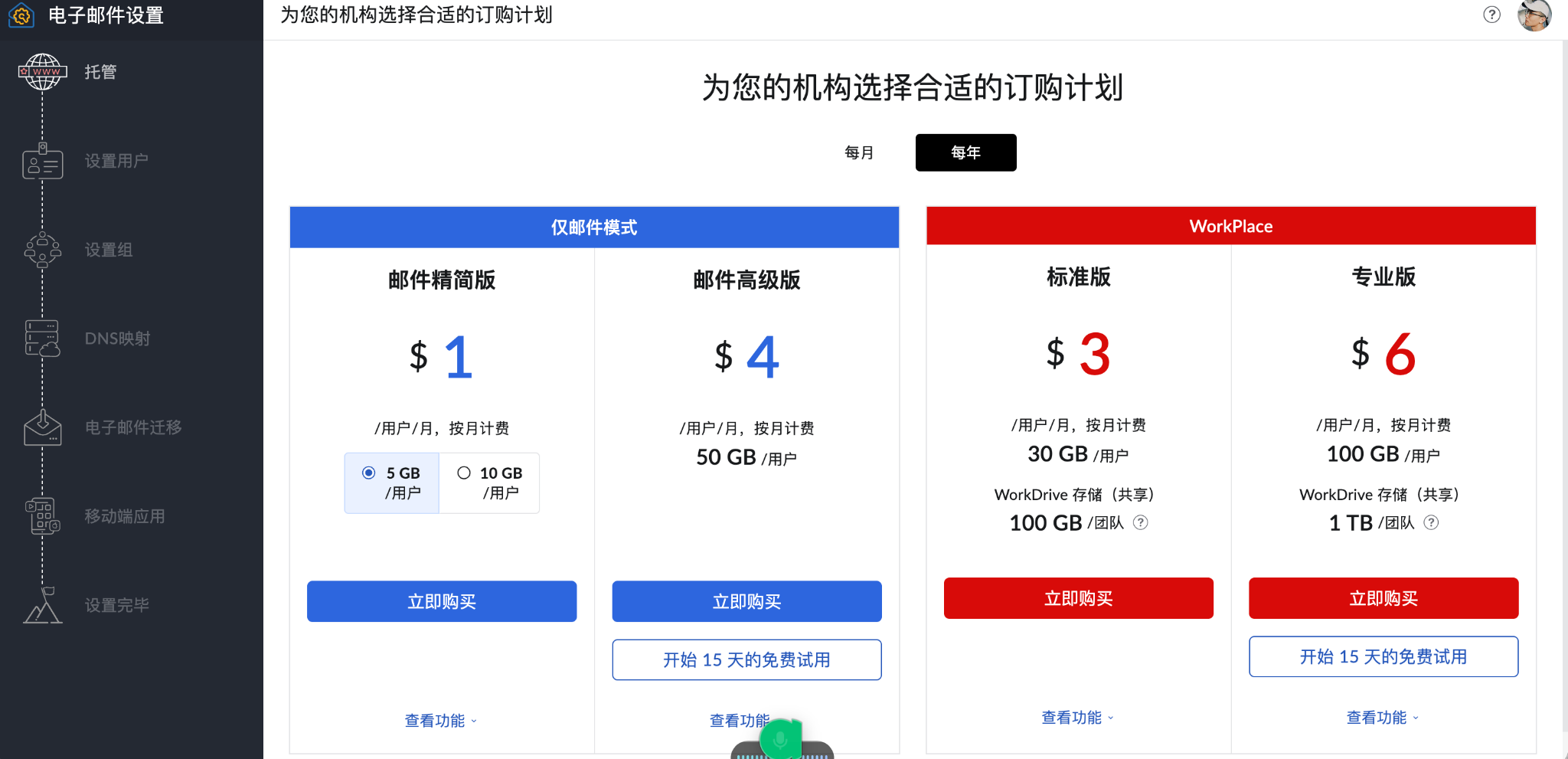
Even where Zoho Free is available, it is mainly intended for the web interface and the official app; it normally does not include IMAP, POP, or ActiveSync. If the current account has no Free entry, continue with the plan Zoho actually shows. Do not fabricate a region or repeatedly delete organizations just to look for a free plan.
2. Register the organization and enter an address
During Zoho Mail business-email signup, choose to use an existing domain and enter:
1 | example.com |
Enter real address information and keep the country/region, city, and billing information consistent. Hong Kong generally has no universal postal code. Leave it blank when the form allows that; if the form requires a number, follow the current Zoho form or payment requirements instead of inventing a postal code.
3. Verify the domain with TXT
Zoho needs proof that you control the domain’s DNS. The verification page normally offers TXT, CNAME, and HTML. This setup used TXT:
Select
TXTon Zoho’s domain-verification page.Note the Host/Name and complete Value shown by Zoho.
Sign in to the platform that actually hosts the DNS. In this case, that is Cloudflare, not Spaceship.
Open
example.com→DNS→Add record.Fill in the fields as follows:
Field How to fill it Type TXTName Use the Host shown by Zoho; it is often @Content Paste Zoho’s current verification string in full TTL AutoSave the record and click verify in Zoho.
This is not an A record. An A record points a domain to a website IP address; a TXT record carries verification or authentication text. Adding the verification TXT does not affect the website, but do not delete existing A/CNAME records.
4. Configure MX, SPF, and basic DNS
After domain verification, use Zoho’s DNS setup wizard to add MX, SPF, and DMARC as instructed. Zoho automatically added these items during this setup, so they should not be added again manually.
If manual configuration is necessary, follow one rule: copy the values shown in the current Zoho page. Do not use old tutorials or guess the values.
In Cloudflare:
- MX records must be DNS only; do not proxy them.
- TXT, SPF, DKIM, and DMARC records must also remain unproxied.
- If an SPF TXT record already exists, do not add a second SPF record. Keep one valid SPF policy, combining entries only when necessary.
- Do not change the website’s A/CNAME records or recreate existing MX records.
5. Add DKIM
In the configuration record, the DKIM page was still disabled and had no TXT host record, so it needed to be completed separately:
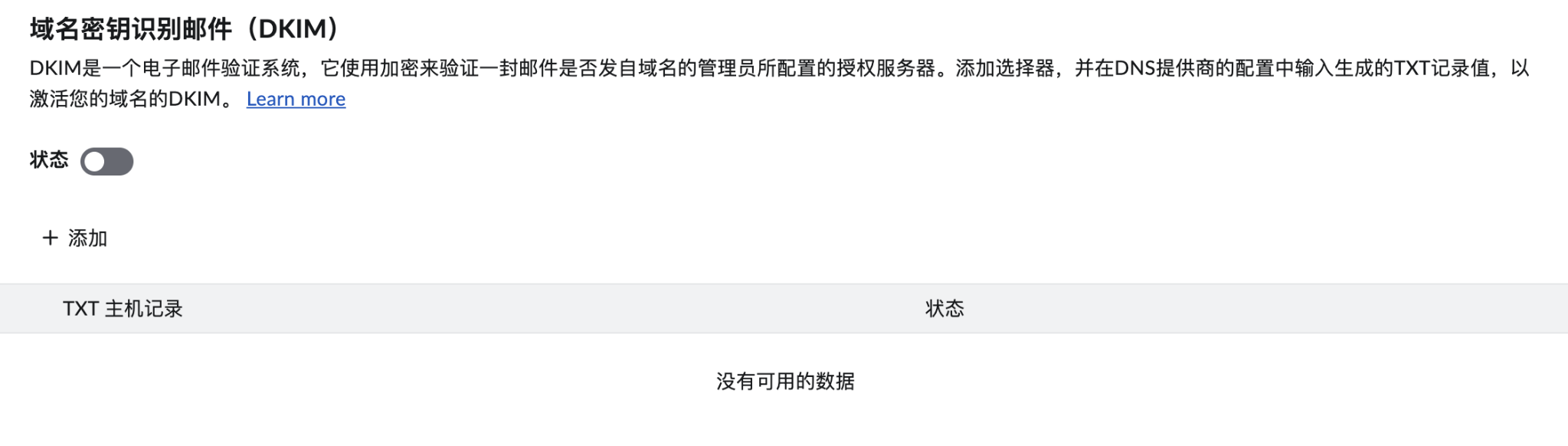
Open Zoho Mail Admin Console →
DKIM.Click “Add”.
Use this selector:
1
zoho
Let Zoho generate the TXT host record and TXT value.
Add a TXT record in Cloudflare:
Field Value Type TXTName zoho._domainkeyContent The complete DKIM TXT value generated by Zoho TTL AutoReturn to Zoho, verify the record, and enable DKIM after verification succeeds.
Text such as v=DKIM1; k=rsa; p=... is only a format example. The actual DKIM public key is long and must come from Zoho’s current output.
6. Set up DMARC
The Cloudflare configuration already contained an _dmarc TXT record, so the correct action was to edit it rather than add a second DMARC record. Start with these values in Zoho’s DMARC generator:
| Zoho field | Initial value |
|---|---|
| Action on authentication failure | Do nothing (p=none) |
| Aggregate report address | [email protected] |
| Forensic report address | [email protected] |
| Action on subdomain failure | Do nothing (sp=none) |
| Policy percentage | 100 |
| SPF alignment | Relaxed |
| DKIM alignment | Relaxed |
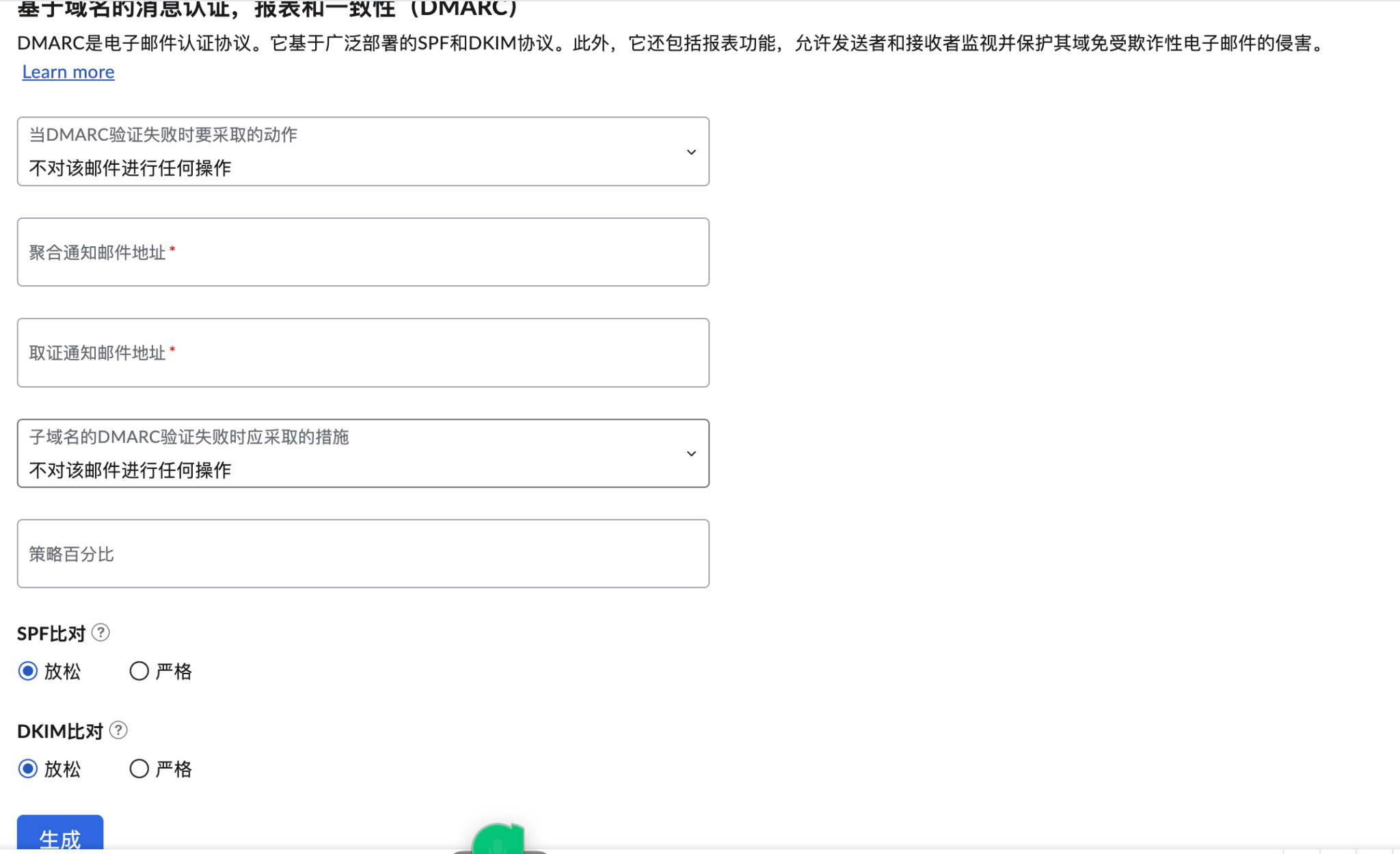
After clicking Generate, copy the complete string actually produced by Zoho. Then in Cloudflare:
- Find the existing
_dmarcTXT record. - Click Edit.
- Replace only the Content.
- Keep the Name as
_dmarcand TTL asAuto. - Save, then return to Zoho and verify.
Starting with p=none lets you monitor authentication results without accidentally blocking website forms, booking systems, or future SaaS services that may send mail for the domain. Once every legitimate sender is confirmed, consider moving gradually to p=quarantine or p=reject.
7. Create the main user and aliases
After domain verification, open Zoho Mail Admin Console → Users → Add User and create the real main user:
- Mailbox:
[email protected] - Display name:
AndyCao
Then add aliases for this user:
[email protected]: public on business cards and the website[email protected]: photography bookings[email protected]: DMARC reports, not for public use
Set [email protected] as the default sending address so clients see the studio mailbox rather than the administrative login address.
When Lisa needs to use email independently, create a new user rather than another alias:
1 | Zoho Mail Admin Console → Users → Add User |
8. Install Zoho Mail App and test
Both Free and Lite plans can use the Zoho web interface. Free also supports the official mobile app, but it cannot connect to Gmail, Apple Mail, or Outlook through IMAP, POP, or ActiveSync.
This setup uses the Zoho Mail App directly, while Gmail remains the private mailbox and Google-services account. Perform a two-way test:
- Send an email from private Gmail to
[email protected]. - Confirm that Zoho receives it.
- Reply from Zoho using
[email protected]. - In Gmail, confirm the sender displays correctly, the message is not treated as spam, and no obvious
viaor authentication anomaly appears.
9. Final checklist
Return to Zoho Admin Console and check the following:
- Domain verification succeeded
- MX is verified and mail reaches Zoho
- SPF is verified
- DKIM was generated, verified, and enabled
- DMARC is verified and Cloudflare has only one
_dmarcTXT record -
hello@can receive mail and send as the sender -
dmarc@exists as an alias for reports - The main website A/CNAME records were not changed accidentally
Once complete, example.com has more than a custom mailbox address: it has mail delivery, sender authorization, a digital signature, and a policy for handling failed authentication.